

Git for Beginners: A Simple Guide to Version Control

If you’re starting your developer journey, one of the first tools you’ll hear about is Git.
Git helps you track changes in your code, collaborate with others, and safely experiment without fear of losing work.
This article explains what Git is, why it’s used, and how to use it step by step, even if you’re completely new.
What is Git?
Git is a distributed version control system.
In simple terms:
It tracks changes in your files
It lets you save versions of your project
It allows multiple developers to work on the same code without conflicts
Unlike older systems, Git gives every developer a full copy of the project history on their own machine.
Why is Git Used?
Git is used because it helps developers:
✅ Track who changed what and when
✅ Roll back to earlier versions if something breaks
✅ Work on features without affecting the main code
✅ Collaborate efficiently with teams
✅ Maintain a clean and reliable project history
Whether you’re working solo or in a team, Git is essential.
Git Basics & Core Terminologies
Before running commands, let’s understand some key Git concepts.
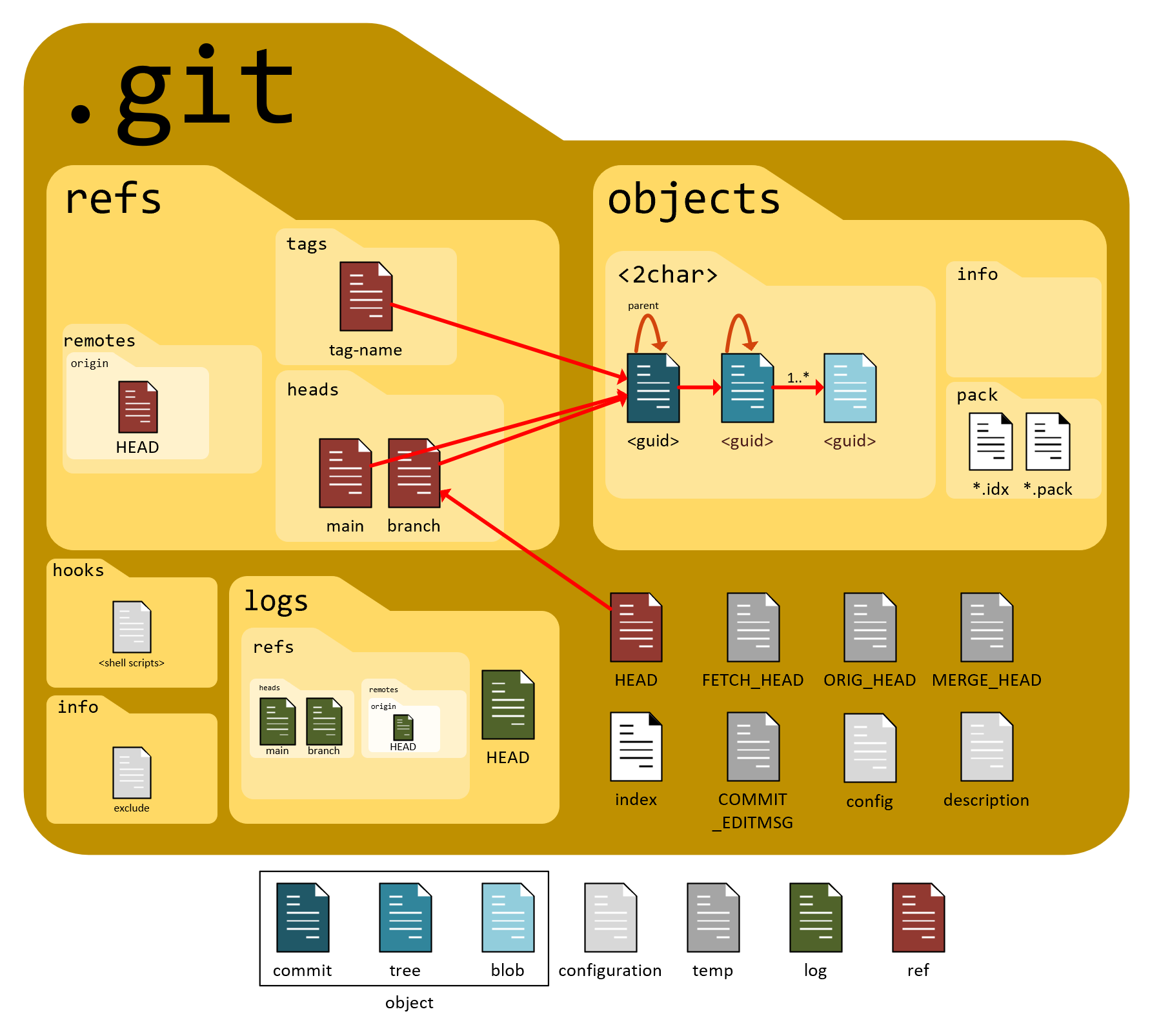
Repository (Repo)
A repository is a project folder that Git is tracking.
It contains:
Your project files
A hidden
.gitdirectory that stores history and metadata
Commit
A commit is a snapshot of your project at a specific point in time.
Think of it like:
“Save game” 🎮 for your code
Each commit has:
A unique ID (hash)
A message describing the change
Branch
A branch lets you work on features independently.
main(ormaster) → stable codefeature branches → experiments or new features
HEAD
HEAD is a pointer to the current commit you’re working on.
Usually, it points to the latest commit on the current branch.
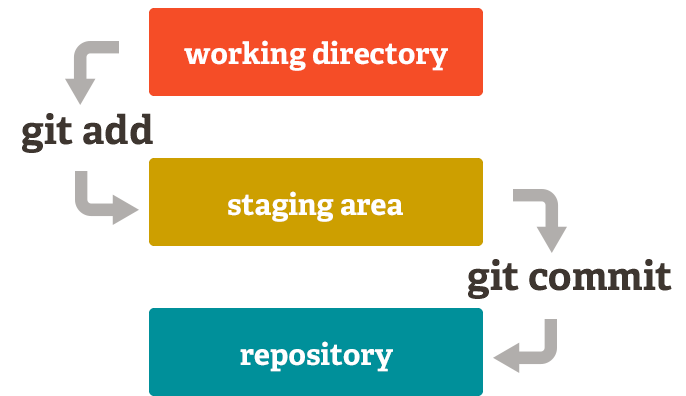
Git works in three main areas:
Working Directory – where you edit files
Staging Area – where you prepare files for commit
Repository – where commits are permanently stored
Common Git Commands (With Examples)
Let’s see the most important Git commands used daily.
1. git init
Creates a new Git repository.
git init
Use this inside your project folder.
2. git status
Shows the current state of your files.
git status
It tells you:
Which files are modified
Which files are staged
What’s not tracked yet
3. git add
Moves changes to the staging area.
git add file.txt
Or add everything:
git add .
4. git commit
Saves staged changes to the repository.
git commit -m "Add initial project files"
💡 Always write clear commit messages.
5. git log
Shows the commit history.
git log
You’ll see:
Commit IDs
Author
Date
Commit message
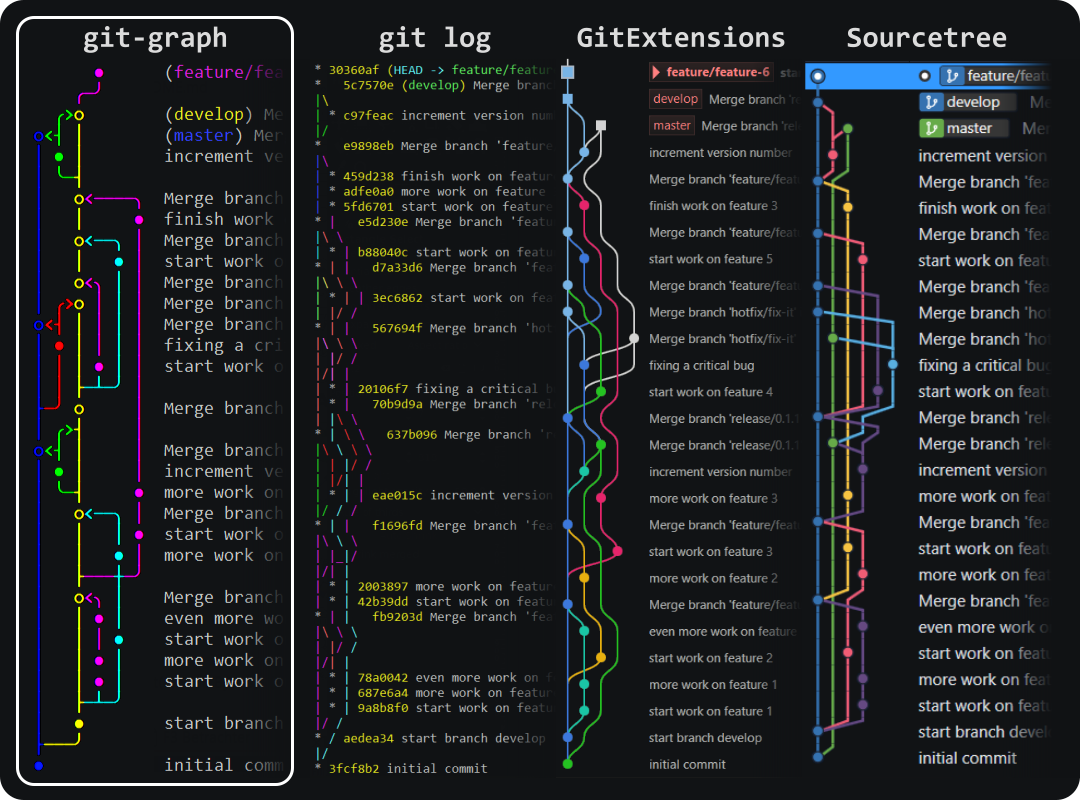

6. git branch
Lists or creates branches.
git branch
Create a new branch:
git branch feature-login
7. git checkout
Switch between branches.
git checkout feature-login
(Modern alternative: git switch)
A Simple Git Workflow (From Scratch)

Let’s walk through a basic developer workflow.
mkdir my-project
cd my-project
git init
Create a file:
echo "Hello Git" > readme.txt
Check status:
git status
Stage the file:
git add readme.txt
Commit:
git commit -m "Add readme file"
Check history:
git log
🎉 You’ve successfully used Git!
Comments
Join the discussionNo comments yet. Be the first to comment.


